Accessible Instructional Materials
Accessibility isn’t just about compliance—it’s about creating better learning experiences for all students.
By ensuring your instructional materials are accessible, you’re not only meeting federal requirements, but you’re also improving clarity, reducing future accommodation requests and supporting every learner’s success.
Updated regulations require instructional materials, websites, shared documents and digital applications to meet accessibility standards by April 26, 2027*. See the ADA Title II Ruling for details.
The Center for Faculty Excellence is here to provide guidance, tools and resources to help you confidently create accessible materials that support the success of all students.
*NOTE: On April 20, 2026, the Department of Justice announced an extension of the original deadline — the compliance deadline is now April 26, 2027.
Now Available - Yuja Panorama!
Yuja Panorama is a digital accessibility platform integrated with Brightspace that helps PNW instructors identify and improve the accessibility of their course materials directly within Brightspace.

Melissa A. Maldonado, M.Ed.
Instructional Accessibility Specialist
Melissa will support faculty in creating accessible instructional materials through trainings and individual consultations to help ensure equitable access for students.
(219) 989-2252
Learning Opportunities
A Purdue system-wide team, with representation from all campuses, is offering learning opportunities and resources to all Purdue instructors. The PNW Center for Faculty Excellence is also offering additional programming. Please use the resources below to learn more about creating accessible instructional materials.
SEE A LIST OF UPCOMING ACCESSIBILITY AND PANORAMA WORKSHOPS
Yuja Panorama – An Introduction to Purdue’s New Accessibility Tool
View the Introduction to Panorama workshop recording (55 min)
YuJa Panorama is a digital accessibility platform integrated with Brightspace that helps instructors identify and improve the accessibility of their course materials directly within the LMS.
Accessibility Skills Video Playlist
Access the playlist highlighting the 7 accessibility skills
Video demonstrations and tips to apply the core accessibility skills
Resources to Get Started
Seven Core Accessibility Skills
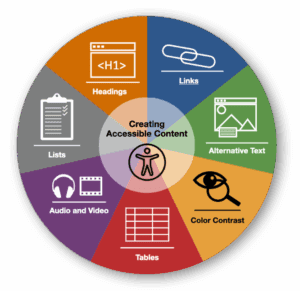 Creating accessible digital content that can be used by all students is the responsibility of everyone who creates course content. Accessible digital content has benefits for all students and especially for students with disabilities. Learning these seven core skills is quick and applying them to your learning materials addresses several of the most common accessibility issues that people encounter.
To learn more about the Seven Core Accessibility Skills:
Accessibility Quick Start Checklist – A brief overview of the core accessibility skills
Accessibility in Digital Content: Seven Core Skills Guide – A detailed guide with explanations about the core accessibility skills and resources to apply them
Choosing the Best Format for Digital Course Content – A decision tree to help you select the most accessible and engaging format for your instructional materials
Accessibility Skills Video Playlist – Video demonstrations and tips to apply the core accessibility skills
Click the tabs below to explore each core accessibility skill and learn how applying these skills can have a huge impact on the accessibility of your content.
Headings
Using proper heading tags isn’t just an accessibility best practice; it’s how we help everyone navigate content more easily.
Think of it like walking into a grocery store: if the aisles weren’t labeled, you’d spend forever wandering around looking for the cereal. Headings work the same way.
They give structure, guide the flow of information and support cognitive load for all learners—not just those using screen readers—making content clearer, faster to scan and easier to understand.
For more information about how to apply headings, view the Accessibility in Digital Content – Seven Core Skills Guide.
Watch the Heading Video for a demonstration on applying this skill.
 Links
Links
Using clear, descriptive link text helps every reader understand where a link will take them before they click.
It’s a bit like handing someone directions: saying “turn left at the big red barn” is far more helpful than “go over there.”
Links like “Click here” or “Read more” leave people guessing, while meaningful links—like “Download the syllabus” or “Visit the Writing Center website”—provide clarity, reduce cognitive load and support both accessibility and user trust.
For more information about how to create accessible links, view the Accessibility in Digital Content – Seven Core Skills Checklist.
Watch the Links Video for a demonstration on applying this skill.
 Alternative Text
Writing effective alternative text (alt text) ensures that all learners can access the meaning of your images, even if they can’t see them.
Think of it like describing a photo to a friend over the phone—you wouldn’t just say “image,” you’d explain what’s important and why it matters.
Alt text serves the same purpose: it conveys the essential information or function of an image, so no one misses out, while also helping all users when images don’t load or when they’re viewing content on a slow connection.
For more information about how to apply alt text, view the Accessibility in Digital Content – Seven Core Skills Checklist.
Watch the Alt Text Video for a demonstration on applying this skill.
Utilize Microsoft CoPilot to save time creating Alternative Text and Image Descriptions for images!
For detailed instructions, please visit the Using Microsoft CoPilot to Create Alternative Text for Images webpage.
 Tables
Accessible tables are all about clarity and structure—giving everyone a fair chance to understand the data.
Think of it like sitting down at a restaurant: if the menu had items scattered randomly across the page with no categories, it would be nearly impossible to make sense of your options. Well-formatted tables, with clear headers and a logical layout, work the same way.
They help screen readers interpret information correctly and make it easier for all users to scan, compare and understand data at a glance.
For more information about how to create accessible tables, view the Accessibility in Digital Content – Seven Core Skills Checklist.
Watch the Tables Video for a demonstration on applying this skill.
 Color Contrast
Good color contrast ensures that text and visuals are easy for everyone to see—no squinting, guessing or zooming required.
It’s a bit like trying to read a street sign at dusk: if the lettering blends into the background, it doesn’t matter how good your eyesight is, the message gets lost.
Strong contrast makes content clearer and more comfortable to read, supports users in bright or low-light environments and ensures that important information doesn’t disappear for anyone.
For more information about how to ensure color is used appropriately, view the Accessibility in Digital Content – Seven Core Skills Checklist.
Watch the Color Contrast Video for a demonstration on applying this skill.
 Lists
Lists
Using proper list formatting helps organize information so everyone can follow it more easily.
Think of it like making a to-do list on a sticky note—you don’t write everything in one long paragraph; you break it into steps, so it’s quick to scan and simple to follow.
Properly formatted lists in your course content work the same way. They help screen readers announce items clearly, reduce cognitive load and make information easier for all learners to understand at a glance.
For more information about how to create accessible lists, view the Accessibility in Digital Content – Seven Core Skills Checklist.
Watch the Lists Video for a demonstration on applying this skill.
 Media
Media
Providing captions, transcripts and accessible players for video and audio isn’t just an accommodation—it’s a way to support everyone’s learning.
Think of it like watching a movie on a plane: even if you can hear the audio, background noise or a poor connection can make captions essential.
Accessible media helps students learn in varied environments, supports multilingual learners, enables quick searching and reviewing content and ensures no one misses key information because of technology or context.
For more information about how to ensure video and audio content is accessible, view the Accessibility in Digital Content – Seven Core Skills Checklist.
Watch the Media Video for a demonstration on applying this skill.
 Math Notation
All math formulas and equations need to be converted to accessible screen reader friendly formats, like LaTeX, MathML, or HTML.
When working with mathematical content, use built-in tools like Word’s Equation Editor or Brightspace’s Equation Editor. These formats will preserve the structure of math expressions so screen readers can accurately interpret and read them.
For additional guidance, faculty in the Purdue Math Department have developed guides and processes for accessible math, available on the Purdue University Department of Mathematics Accessible Teaching Materials page.
Complex Images
Complex images (e.g., data visualizations, scientific images, chemistry structures, schematics) require both alt text and long descriptions to fully communicate essential information conveyed by an image.
Review the Complex Images module from the University of Louisville for guidance on how to make complex images accessible.
Frequently Asked Questions

Purdue West Lafayette maintains a comprehensive set of Frequently Asked Questions (FAQs) to support the creation of Accessible Instructional Materials. This resource is updated regularly as new guidance, standards and best practices become available.
Accessible Instructional Materials FAQs
If you have questions about the accessibility of non‑instructional materials—including websites, digital communications, marketing content or campus technologies—please visit the Accessibility at PNW website for additional guidance and support.
Upcoming Accessibility Workshops
Sep 16
Panorama Playground: Strategies to Make Handwritten Notes Accessible Using YuJa PanoramaYuja Panorama is a digital accessibility platform integrated with Brightspace that helps PNW instructors identify and improve the accessibility of their course materials directly within Brightspace.
Sep 28
Panorama Playground: Using AI and YuJa Panorama to Support Accessibility and UDLYuja Panorama is a digital accessibility platform integrated with Brightspace that helps PNW instructors identify and improve the accessibility of their course materials directly within Brightspace.
Oct 10
Accessibility: Strategies for an Accessible PDF When a PDF Is NecessaryYuja Panorama is a digital accessibility platform integrated with Brightspace that helps PNW instructors identify and improve the accessibility of their course materials directly within Brightspace.