Accessible Instructional Materials
Accessibility isn’t just about compliance—it’s about creating better learning experiences for all students.
By ensuring your instructional materials are accessible, you’re not only meeting federal requirements, but you’re also improving clarity, reducing future accommodation requests and supporting every learner’s success.
Updated regulations require instructional materials, websites, shared documents and digital applications to meet accessibility standards by April 24, 2026. See the ADA Title II Ruling for details.
The Center for Faculty Excellence is here to provide guidance, tools and resources to help you confidently create accessible materials that support the success of all students.
Learning Opportunities
A Purdue system-wide team, with representation from all campuses, is offering learning opportunities and resources to all Purdue instructors. The PNW Center for Faculty Excellence is also offering additional programming. Please use the resources below to learn more about creating accessible instructional materials.
Visit the Purdue Instructional Material ADA Readiness website
Accessibility Sparkshops
Sparkshops are 15-minute virtual mini-workshops offered on a variety of topics by PNW Center for Faculty Excellence staff. They are meant to start exploration of a chosen topic with continued support from the CFE as requested. Sparkshops are being offered on several topics related to the creation of accessible instructional materials – check them out!
SEE A LIST OF UPCOMING ACCESSIBILITY SPARKSHOPS
Workshops
- Instructional Material ADA Readiness – Introduction
- New federal regulations have updated existing requirements for web and digital accessibility in public institutions. In this introductory session, we will discuss the resources available to instructors, demonstrate digital accessibility tools and take questions from attendees.
- Workshop Recording: Instructional Material ADA Readiness – Introduction (11/5/25)
- Instructional Material ADA Readiness – Accessible Documents
- New federal regulations have strengthened requirements for digital accessibility in public institutions, including course materials. In this session, we will explore best practices for creating accessible documents, demonstrate tools for checking and improving accessibility in Word and PDF files, and share resources available to instructors. Attendees will also have an opportunity to ask questions and discuss strategies for making course content more inclusive.
ADA Title II Drop-In Sessions
Live, informal support sessions where instructors across all Purdue system campuses can ask questions, troubleshoot challenges and get personalized advice in real time. The ADA Title II drop-in schedule below will resume on January 5, 2026.
Use the Zoom link below to access an ADA Title II daily Drop-In session.
Join an ADA Title II Drop-In Session (Zoom link)
ADA Title II Drop-In Schedule
- Mondays, 1 to 2 p.m. CST
- Tuesdays, 10 to 11 a.m. CST
- Wednesdays, Noon to 1 p.m. CST
- Thursdays, 2 to 3 p.m. CST
- Fridays, 10 to 11 a.m. CST
Asynchronous ADA Title II Training Course
Self-paced, non-credit, asynchronous course in Brightspace available to instructors across all Purdue system campuses.
This course is designed to guide instructors through accessibility fundamentals and practical implementation strategies. It provides startup resources and guides for instructors seeking to align courses, materials and media to accessibility standards.
Short modules introduce accessibility best practices for Word documents, PowerPoints, PDFs, Brightspace content, media (captions and transcripts) and graphics. These modules may be explored in any order and at your own pace.
Course Registration and Access
- Navigate in a web browser to the Training @ Purdue Catalog, and use the “sign in” button (upper right) to authenticate with your Purdue Career Account.
- Once authenticated, you can access the course listing directly through this link or by selecting: Catalog (in top menu bar) > Teaching & Learning > ADA Title II Instructional Material Readiness.
- Select “Add to Cart” to begin the registration process.
- Choose “Proceed to Checkout” (there is no charge for this course).
- Confirm your information details (address, email, phone number) and select “Continue.”
- Agree to the “Terms of Use” and select “Continue.”
- Select “Submit” to finalize registration.
- Wait five minutes for your registration to process, then log in to Brightspace. Locate the course in your list of courses. The course title will be located under the All filter within My Courses, or you may have to search for the course by its title: ADA Title II Instructional Material Readiness.

Choosing the Best Format for Digital Course Content
Access a decision tree to determine the best format for your digital course content to ensure the content is accessible and engaging to support student learning.
Resources to Get Started
Seven Core Accessibility Skills
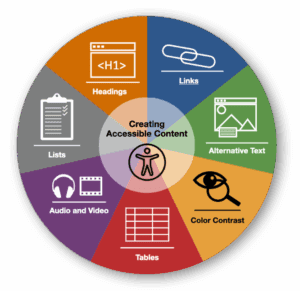 Creating accessible digital content that can be used by all students is the responsibility of everyone who creates course content. Accessible digital content has benefits for all students and especially for students with disabilities. Learning these seven core skills is quick and applying them to your learning materials addresses several of the most common accessibility issues that people encounter.
For detailed explanations, a checklist of steps and links to guides for each of the seven core skills, access the Accessibility in Digital Content – Seven Core Skills Checklist.
Click the tabs below to see the core areas where you can apply quick fixes and have a huge impact on the accessibility of your content.

Headings
Using proper heading tags isn’t just an accessibility best practice; it’s how we help everyone navigate content more easily.
Think of it like walking into a grocery store: if the aisles weren’t labeled, you’d spend forever wandering around looking for the cereal. Headings work the same way.
They give structure, guide the flow of information and support cognitive load for all learners—not just those using screen readers—making content clearer, faster to scan and easier to understand.
For more information about how to apply headings, view the Accessibility in Digital Content – Seven Core Skills Checklist.
 Links
Links
Using clear, descriptive link text helps every reader understand where a link will take them before they click.
It’s a bit like handing someone directions: saying “turn left at the big red barn” is far more helpful than “go over there.”
Links like “Click here” or “Read more” leave people guessing, while meaningful links—like “Download the syllabus” or “Visit the Writing Center website”—provide clarity, reduce cognitive load and support both accessibility and user trust.
For more information about how to create accessible links, view the Accessibility in Digital Content – Seven Core Skills Checklist.
 Alternative Text
Writing effective alternative text (alt text) ensures that all learners can access the meaning of your images, even if they can’t see them.
Think of it like describing a photo to a friend over the phone—you wouldn’t just say “image,” you’d explain what’s important and why it matters.
Alt text serves the same purpose: it conveys the essential information or function of an image, so no one misses out, while also helping all users when images don’t load or when they’re viewing content on a slow connection.
For more information about how to apply alt text, view the Accessibility in Digital Content – Seven Core Skills Checklist.
Utilize Microsoft CoPilot to save time creating Alternative Text and Image Descriptions for images!
For detailed instructions, please visit the Using Microsoft CoPilot to Create Alternative Text for Images webpage.
 Tables
Accessible tables are all about clarity and structure—giving everyone a fair chance to understand the data.
Think of it like sitting down at a restaurant: if the menu had items scattered randomly across the page with no categories, it would be nearly impossible to make sense of your options. Well-formatted tables, with clear headers and a logical layout, work the same way.
They help screen readers interpret information correctly and make it easier for all users to scan, compare and understand data at a glance.
For more information about how to create accessible tables, view the Accessibility in Digital Content – Seven Core Skills Checklist.
 Color Contrast
Good color contrast ensures that text and visuals are easy for everyone to see—no squinting, guessing or zooming required.
It’s a bit like trying to read a street sign at dusk: if the lettering blends into the background, it doesn’t matter how good your eyesight is, the message gets lost.
Strong contrast makes content clearer and more comfortable to read, supports users in bright or low-light environments and ensures that important information doesn’t disappear for anyone.
For more information about how to ensure color is used appropriately, view the Accessibility in Digital Content – Seven Core Skills Checklist.
 Lists
Lists
Using proper list formatting helps organize information so everyone can follow it more easily.
Think of it like making a to-do list on a sticky note—you don’t write everything in one long paragraph; you break it into steps, so it’s quick to scan and simple to follow.
Properly formatted lists in your course content work the same way. They help screen readers announce items clearly, reduce cognitive load and make information easier for all learners to understand at a glance.
For more information about how to create accessible lists, view the Accessibility in Digital Content – Seven Core Skills Checklist.
 Media
Media
Providing captions, transcripts and accessible players for video and audio isn’t just an accommodation—it’s a way to support everyone’s learning.
Think of it like watching a movie on a plane: even if you can hear the audio, background noise or a poor connection can make captions essential.
Accessible media helps students learn in varied environments, supports multilingual learners, enables quick searching and reviewing content and ensures no one misses key information because of technology or context.
For more information about how to ensure video and audio content is accessible, view the Accessibility in Digital Content – Seven Core Skills Checklist.
Frequently Asked Questions

Purdue West Lafayette maintains a comprehensive set of Frequently Asked Questions (FAQs) to support the creation of Accessible Instructional Materials. This resource is updated regularly as new guidance, standards and best practices become available.
Accessible Instructional Materials FAQs
If you have questions about the accessibility of non‑instructional materials—including websites, digital communications, marketing content or campus technologies—please visit the Accessibility at PNW website for additional guidance and support.
Upcoming ADA Sessions
Mar 02
Instructional Material ADA – Drop-In SessionLive, informal support session where instructors can ask questions, troubleshoot challenges, and get personalized advice in real time.
Mar 03
Instructional Material ADA – Drop-In SessionLive, informal support session where instructors can ask questions, troubleshoot challenges, and get personalized advice in real time.
Mar 04
Instructional Material ADA – Drop-In SessionLive, informal support session where instructors can ask questions, troubleshoot challenges, and get personalized advice in real time.
Mar 05
Instructional Material ADA – Drop-In SessionLive, informal support session where instructors can ask questions, troubleshoot challenges, and get personalized advice in real time.