Images
Photography brings our site to life. Use this page as a guide for working with images.
Copyright Note: Editors should only use images for which Purdue University Northwest holds the copyright or stock images that have been purchased or licensed for use. If you have a question about whether an image should be used, please contact the Marketing and Communications team.
In This Section
Image Sizes
We recommend saving images to the smallest size that will display well on the PNW website. You can see recommendations for different photo layouts below.
If you’re saving photos in Photoshop, we recommend scaling your pictures to the aspect ratios below at a resolution of 112 pixels/inch, with a “quality rating” of 6.
Recommended Sizes for PNW Website Layouts
- Full-width slideshow: 900×600
- Standard-width slideshow, full-width photo in “standard” visual editor: 750×500
- Full-width “feature”: 576×384
- Video “thumbnail” on program page: 400×267
- Program card: 363×242
- Standard-width “feature”: 375×250
- Full-width “hero” image, post*: 550×688
- Story header: 500×625 (needs to be exact)
- Testimonial: 400×500
- Cards (three and four across): 363×454*
- Sidebar promo: 300×375
* “Four across” cards can be optimized to a smaller 264×330 size. Given the frequency that “card” layouts change, though, we recommend optimizing for the three-across size.
- Post**: 300×300
- “Bio” photo: 235×235
- Pullquote testimonial: 100×100
** Website posts can include portrait, landscape or square photos in the post itself. However, when a post is displayed in a news feed on the site, any photo uploaded will be cropped to a square. Our recommendation for posts is to upload a 550×688 “landscape” photo as the feature image, choosing one that is composed so that it crops well to a square at its center.
- Prefooter panel: 1775×710
- Image panel: 1440×600
- Program top section: 1440×600*
* For program top section, the focus of the image needs to be just left of center, but not too far left of center, as the image crops to the center on mobile.
- Full Width Mobile Images*
**In order to make an image appear full width, a special class is needed. When adding an image in the media library (when using a float image in the visual editor, accordion, split panel, or text panel), click the advanced tab, and under the CSS Attributes, add “full-width” (without the quotes). This will apply the class, and on mobile, it will make the image go full width rather than stay small and float. When using this feature, to ensure proper image optimization, and quality, a width of 320px is required, the height can flex for portrait or landscape.
Three Easy Steps to Adding Images to Your Site
Once you’ve picked the images that best represent your content and match the tone of your pages, it’s time to get them ready for uploading to the PNW website. This process helps PNW’s website look great and load fast.
Adjust your image to the correct ratio and size for your layout. Smaller, optimized images load faster and look better.
Add the image to your site’s Media Library. Make sure it’s named clearly so others know where it belongs.
Alt text is required for accessibility and SEO. Captions help explain the image or add context for your visitors.
Step 1: Resize and Name
Before uploading images to your website, it’s important to resize them so they fit your design and don’t slow down your site.
How to Resize Your Image
- Photoshop
- Adobe Express
- Adobe Express provides a free online photo resizer that is more straightforward than using Photoshop.
- ImageResizer.com
- ImageResizer is a browser-based tool that can resize images while retaining quality.
- Croppola
- Croppola is free and cloud-based tool that helps you crop to specific sizes or aspect ratios.
- Resizing in WordPress
- Upload your image to the “Media Library.”
- Click “Edit Image.”
- Use the built-in tools to resize it to your target dimensions.
Giving your image files clear, consistent names makes it easier to organize them and know exactly where they belong on your site.
Include information and the photo dimensions for easy search.
Use a Simple Naming Pattern
- Try this format: [page-or-section]_[what-the-image-is]_550x688.jpg
This helps anyone working on the site instantly understand where the image goes and what it’s for.
Examples
- home_hero_550x688.jpg — Hero image for the homepage
- about_team_750x500.jpg — Team photo for the About page
- john_doe_feature_300x300.jpg — Featured image of John Doe for a blog or profile section
- services_icon_235x235.jpg — Icon used in the Services section
Step 2: Upload Your Image
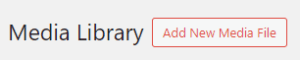
- Adding an Image to the Media Library – To add an image while in the Media Library, click the “Add New” button.
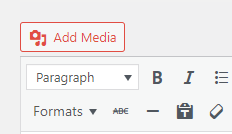 Adding an Image while Editing a Page – To add an image while editing a page, click the “Add Media” button above the module you are working in.Before clicking the button, make sure your cursor is located where you want the image to be placed in the content. This option allows adding a new image to the media library for use, or choosing an existing image to use from the media library. Note: This button is only available in select modules.
For many images, the resize step will have a significant and adequate positive impact on the weight of the image file. In those cases, an additional optimization step is not necessary.
However, optimization is very important for images with larger dimensions, particularly banner images.
The media item has a name/title field that is separate from the image filename. We recommend using this field to provide a short description of the image.
Avoid naming the item with pages or sections of the site or with image sizes or uses. For example, “students hanging out on lawn” is a better name than “admissions hero image students”.
Where appropriate, provide a caption for the image directly on the media item. Captions are optional and only displayed in certain layouts
The editing pane will look slightly different depending on where you upload your photo.
Step 3: Add Alt Text and Captions
Alt text is brief, descriptive text that describes the meaning of an image on a webpage or other digital content. It serves as a text equivalent for users who are unable to see the image or when the image fails to load.
Alt text is required for every image uploaded to the PNW website.
Captions are optional and only displayed in certain layouts.
View the Web Accessibility Initiative’s Alt Text Decision Tree
There are multiple AI tools for writing alt text.
If you choose to use any of these tools, please edit the text to make it specific to PNW. Your knowledge of PNW will provide better context for the photo than AI can.
See examples of how to enhance AI alt text
Possible tools include:
- Why is this visual element here?
- What information does it present?
- What is its purpose?
- If the image were removed, how would I describe it to convey the same information and/or purpose?
While we would prefer to keep flow charts, decision trees, infographics and other diagrams/photos off of the website, we understand that sometimes they can be a helpful way of communicating information.
The web team should always be consulted before any sort of text-heavy graphic is uploaded to the website, as they require a lot of work to make accessible.
If you would like to add a text-heavy graphic to the website, you will also need to provide a text document of the information listed on the graphic.
See an example of a graphic being paired with an accessible recreation of the content
Examples of Effective Alt Text
Please Note: AI must not be used to create final alt text for images, as AI tools are not yet accurate enough to rely on for audience consumption without human proofreading.
Source: AI Content Guidelines for Purdue Brand Studio and Purdue Brand Network
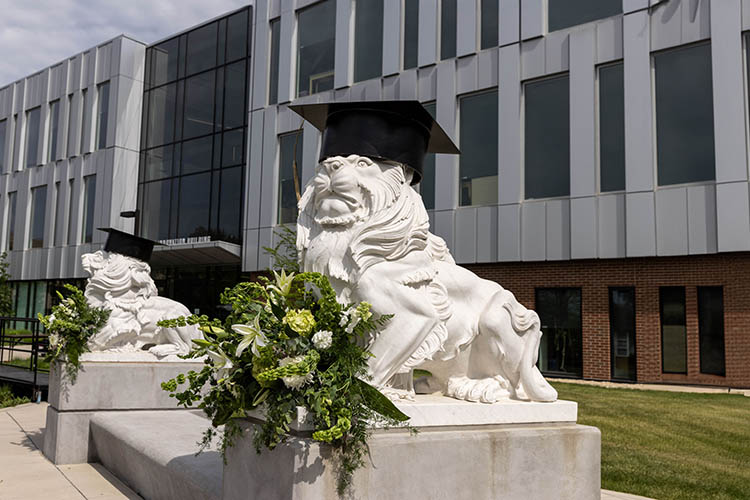
- Unhelpful: Outdoor statues
- ChatGPT: Two white lion statues wearing graduation caps sit outside a modern campus building decorated with green and white floral arrangements.
- Branded and Specific: Two white lion statues wearing graduation caps outside of Hammond’s Nils K. Nelson Bioscience Innovation Building. The statues are decorated with white and green floral arrangements.
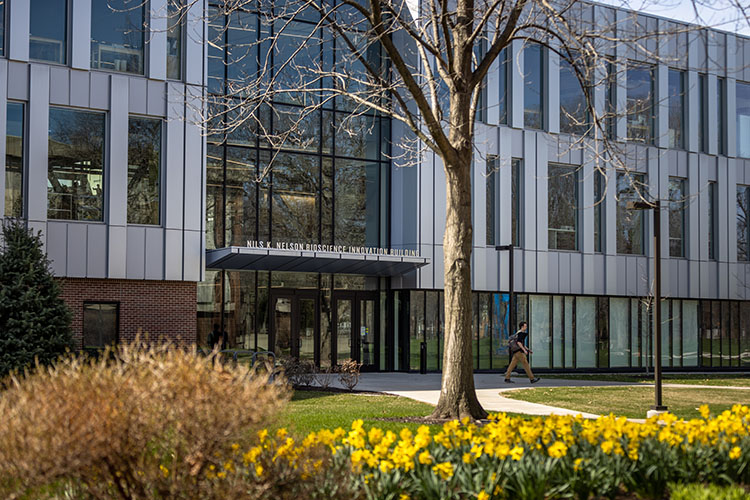
- Unhelpful: A building
- AltText.AI: A modern academic building with large windows; a person walks on the path outside, and yellow daffodils bloom in the foreground.
- Specific: The Nils K. Nelson Bioscience Innovation building on the PNW Hammond Campus. A student is walking outside the building and daffodils bloom in the foreground.
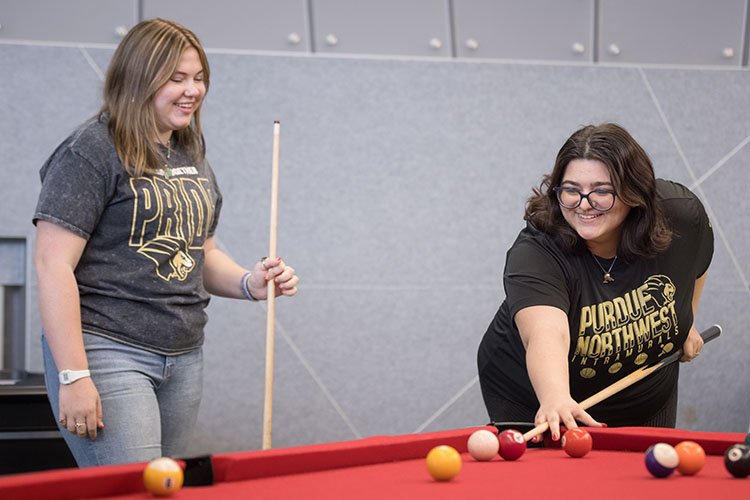
- Unhelpful: People play a game
- tailwind: Two women play pool on a red table, both smiling and holding cues. They wear Purdue Northwest shirts, creating a fun and casual atmosphere.
- Specific: Two PNW students play pool on a red table in DSAC, both smiling and holding pool cues. They are wearing PNW shirts and jeans.
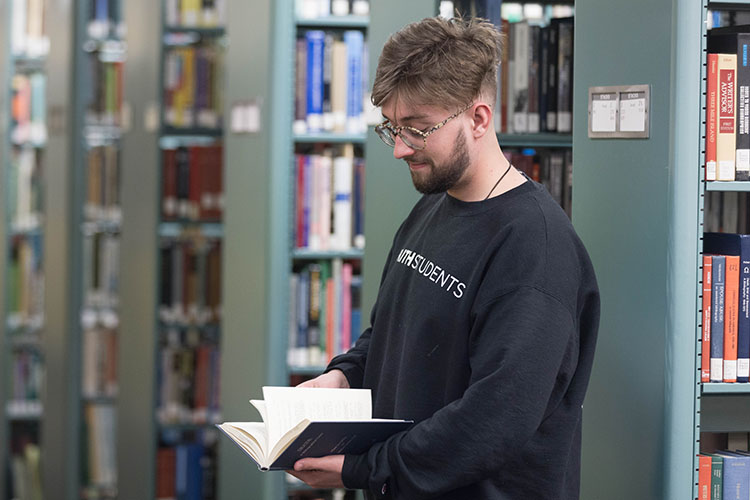
- Unhelpful: Person in library
- ASU’s Image Accessibility Generator: A man in a black sweatshirt stands in front of a bookshelf filled with various books.
- Specific: A PNW student in a black sweatshirt stands in the Hammond Campus library. The library stacks are pictured behind them.
Frequently Asked Questions
The featured image on a Post is flexible and it is acceptable to use a landscape, portrait or square image. Please make sure the shorter of the two sides of the image is at least 350 pixels.
Alt text is brief, descriptive text that describes the meaning of an image on a webpage or other digital content. It serves as a text equivalent for users who are unable to see the image or when the image fails to load.
Please note that applying alt text to an image is required for accessibility purposes.
All images on the PNW website require alt text.
Items that require alt text include:
- Logos
- Graphs
- Charts
- Diagrams
- Maps
- Icons
- Images with or without text
- Why is this visual element here?
- What information does it present?
- What is its purpose?
- If the image were removed, how would I describe it to convey the same information and/or purpose?
Alt text should:
- Be short and to the point.
- Communicate the same information as the visual content.
- Refer to relevant content provided by the image, rather than simply describing how the image looks.
- Not contain any extra or unnecessary information, and should not repeat information that is already provided in the text.
- Always utilize proper punctuation. Without punctuation, screenreaders do not know when to pause or stop between phrases or sentences.
- Be in the same language as the main content.
- For example, if you translate an English document into Spanish, you must also translate the alt text into Spanish.
Common mistakes include:
- Text that doesn’t describe the content of the image.
- Text that describes unnecessary information.
- Text that visually describes the image, but does not describe the relevant part(s) of the image.
- Text that repeats information from the main text.
- Alt text that is just the image’s file name or path instead of a description.
- Alt text is a computer-generated, visual description of the image, but does not describe the relevant content of the image.
- Alt text that is in a different language than the onscreen text.
While we would prefer to keep flow charts, decision trees, infographics and other diagrams/photos off of the website, we understand that sometimes they can be a helpful way of communicating information.
The web team should always be consulted before any sort of text-heavy graphic is uploaded to the website, as they require a lot of work to make accessible.
If you would like to add a text-heavy graphic to the website, you will also need to provide a text document of the information listed on the graphic.
See an example of a graphic being paired with an accessible recreation of the content
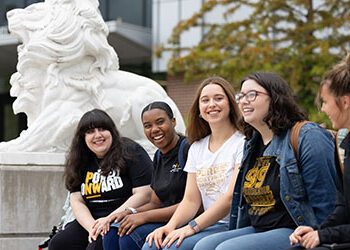
PNW Photo Galleries
To support consistent and compelling storytelling, PNW’s Marketing and Communications team maintains a public gallery of brand‑approved photos available for campus partners to use as needed.
Explore PNW's Photo Galleries